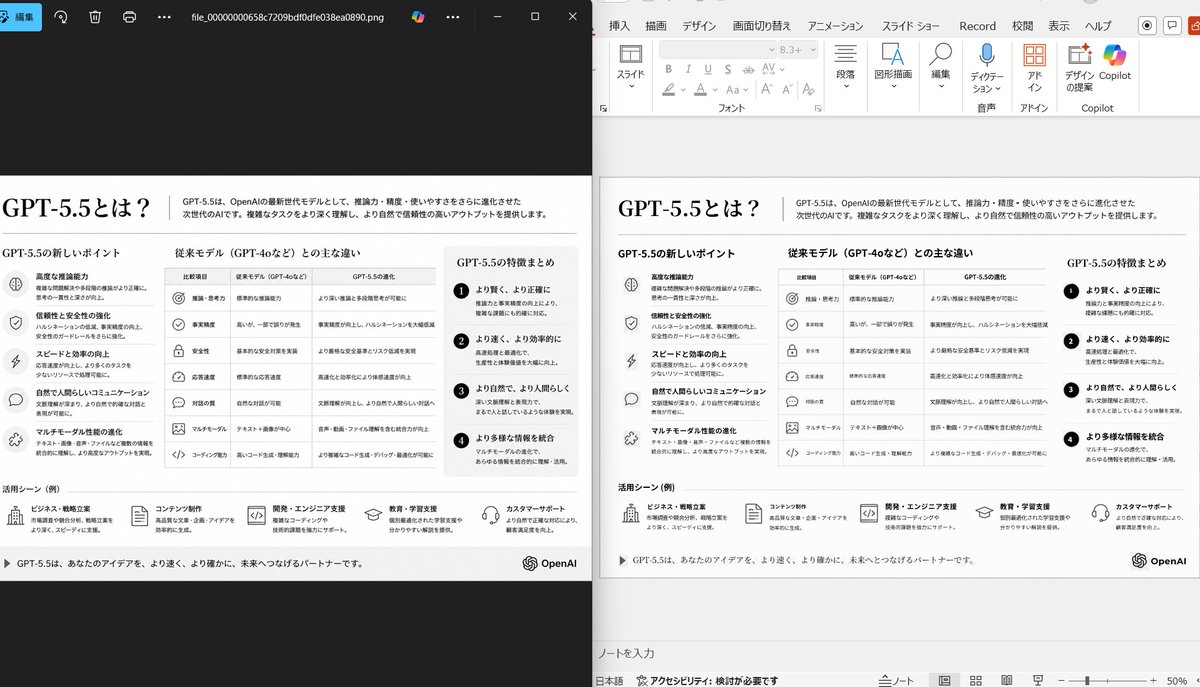
Japanese slide reconstruction comparison AI Image Prompt
Using the provided reference image of the PowerPoint slide screenshot, recreate it as a clean, polished slide conversion result inside a side-by-side desktop comparison. Keep the same Japanese slide topic and overall layout, but remove the dense selection handles, edit boxes, and malformed vector artifacts from the reference so the slide appears properly reconstructed. Show 2 panels: on the left, a dark image viewer window displaying the exported slide image; on the right, the same slide opened in PowerPoint editing view. Preserve the original monochrome infographic style and Japanese text structure, but make the typography legible and the icons, dividers, and columns cleanly aligned. Keep the slide as a single-page infographic with 5 main content areas: 1 top title/header row, 3 mid-page comparison columns, 1 bottom use-case row containing 5 icon-labeled items. Include a footer line and the OpenAI logo at bottom right. Emphasize that this is a faithful PPT reconstruction from the uploaded image, with a realistic Windows desktop app screenshot look.
Content: Structure: side-by-side desktop comparison, left image viewer window, right PPT editing view. Subject: slide reconstruction. Scene: Windows desktop app screenshot. Style: monochrome infographic, Japanese. Composition: dual panels. Lighting: none. Color: monochrome. Material: screen pixels. Lens: none. Aspect ratio: unknown.
Pros: Clear layout description for controlled output; specifies elements (e.g., 5 content areas) ensuring structural completeness.
Cons: Over-relies on reference image, limiting diversity; too detailed (e.g., footer, OpenAI logo) risking overfitting.
Reference image: Clearly depends on the reference image
Curated from publicly available creative examples. Prompts and commentary are edited and organized by this site. Please contact us with any rights concerns. Copyright & Privacy